
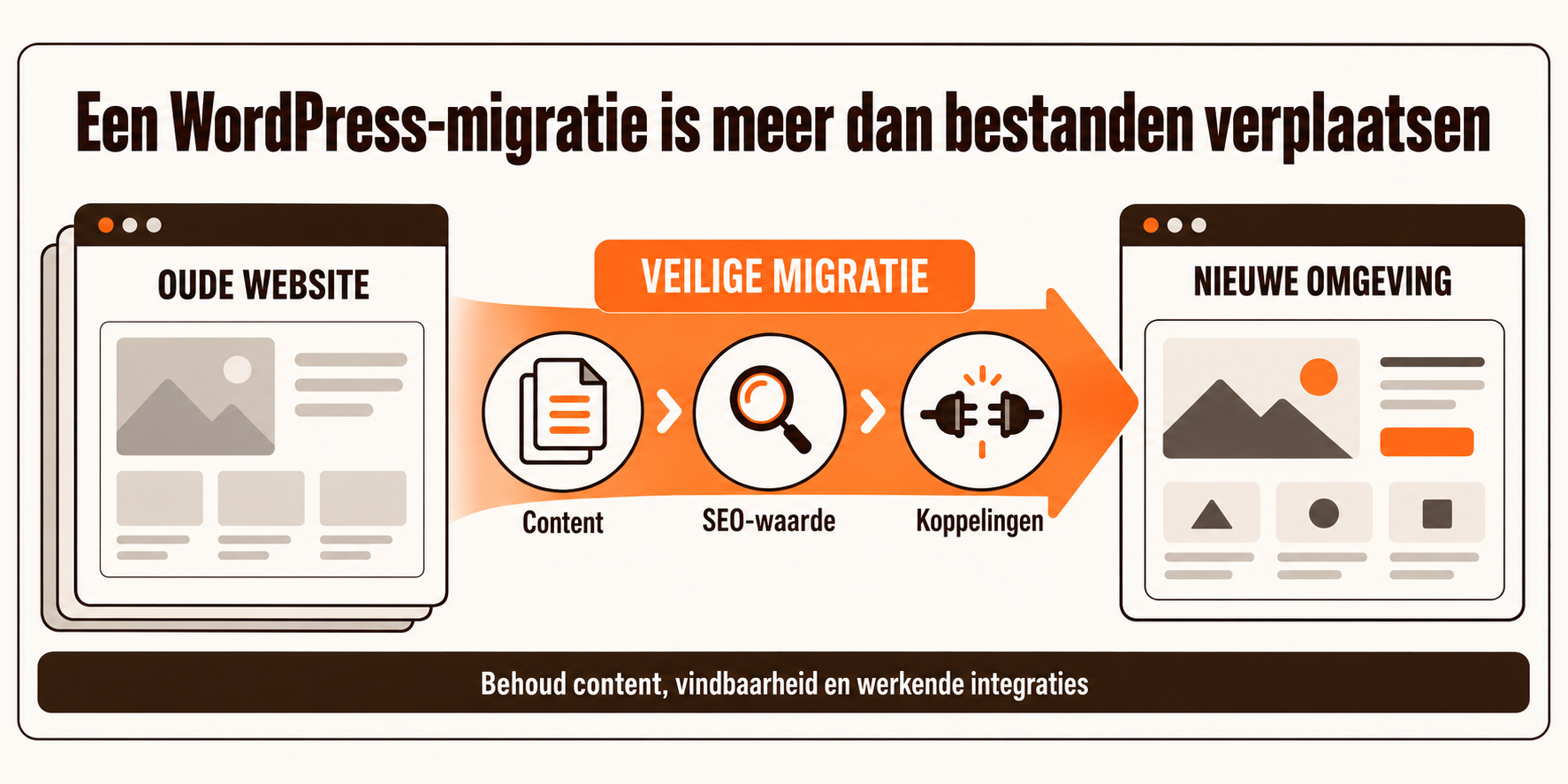
What is meant by a WordPress migration?
Not every WordPress migration is the same. It can involve:
- moving a WordPress website to a different hosting environment;
- switching to a different domain;
- building a new WordPress website and transferring the existing content;
- replacing WordPress with a different CMS;
- bringing multiple websites, languages or domains together in one environment.
When moving to different hosting, the URLs and the CMS usually stay the same. That is relatively straightforward. With a new domain, a changed site structure or a switch to a different CMS, much more changes. Search engines then need to understand where every existing page has moved to. Forms, integrations, multilingual setups, metadata and management functions also have to be set up and tested again.
A migration plugin can copy files and a database. That plugin does not determine which content should stay, how old URLs are mapped to new pages or how you prevent a test environment from being indexed. That is exactly where the real migration work begins.
Can you migrate WordPress without losing SEO?
You can migrate a WordPress website without a structural loss of SEO value, but a temporary fluctuation in visibility cannot always be avoided. Google states that rankings can fluctuate during a large move while old and new URLs are crawled and processed again. For mid-sized websites, according to Google, that can take several weeks or longer.
The goal is therefore not to promise that every ranking stays exactly the same from day one. The goal is to transfer all relevant signals properly and to spot problems quickly. For that, among other things, the content, URLs, redirects, internal links, canonicals, sitemaps and technical accessibility must be correct.
The earlier SEO is involved in the migration plan, the smaller the chance that after going live you have to repair what could have been prevented beforehand.
Migrating WordPress in 10 steps
1. Map out the existing website completely
A migration starts with knowing what is there now. Before the build, make a complete inventory of:
- all indexable URLs;
- organic traffic and important keywords per page;
- incoming links to the website;
- page titles, meta descriptions and headings;
- images, videos, documents and downloads;
- forms, tracking, scripts and external integrations;
- redirects, canonicals and multilingual settings;
- existing errors, such as 404 pages and duplicate content.
Don't use only the sitemap. Pages can have traffic or backlinks while not being listed there. Therefore combine information from the website crawl, Google Search Console, analytics and, if applicable, server logs.
This baseline measurement is your reference point after going live. Without a baseline you can see that traffic changes, but not where or why.
2. Decide what stays, gets improved or disappears
A migration is a good moment to clean up, but not to remove valuable pages without justification. Therefore assess each URL:
- does the page stay one-to-one?
- is the content merged with another page?
- does the page get a new URL?
- is the content outdated and can the URL rightly disappear?
Don't look only at visitor numbers. A page with little traffic can have relevant backlinks, be important for a specific target audience or play a supporting role in the internal link structure.
Also don't try to change everything at once. For complex moves, Google advises splitting up big changes where possible. A new domain, a different CMS, a completely new design and rewritten content all at the same time make it harder to trace problems.
3. Create a URL mapping and redirect plan
The URL mapping is the heart of an SEO migration. In it you record for every old URL what the new destination will be.
Does a URL stay the same? Then no redirect is needed. Does the URL change? Then set up a permanent server-side redirect, usually a 301 or 308. Google advises pointing old URLs directly to the most relevant new destination.
So don't send all removed pages to the homepage for convenience. That doesn't help visitors and can be treated by Google as a soft 404. Also avoid redirect chains such as old A to old B to new C. Every extra step slows down the route and makes the migration more error-prone.
Google generally advises keeping redirects in place for at least a year after a move. For visitors and old external links it can be wise to keep them even longer.
4. Migrate more than just the visible texts
A page consists of more than the text visitors see. During the migration, also check:
- SEO titles and meta descriptions;
- alt texts and file names of images;
- publication and modification dates where relevant;
- authors, categories and tags;
- internal and external links;
- structured data;
- downloadable files;
- embedded video and other media;
- multilingual relationships and hreflang references.
Especially when switching to a different CMS, a one-to-one export is rarely sufficient. Fields and content models differ. Sometimes content has to be cleaned up, restructured or converted with a migration script.
5. Build and test in a protected environment
The new website is normally built first on a test environment. That environment must not appear in Google prematurely. Therefore shield it properly, for example with authentication, and check before going live which temporary noindexor robots settings are active.
A classic migration mistake is that the production environment accidentally stays blocked after going live. Such blocks can affect not only Google and Bing, but also crawlers used by AI search engines. Google explicitly names leftover noindexrules and blocks in robots.txt as common problems in site moves.
Don't test the new website only technically. Also have editors and end users check whether content is correct, forms work and the management is logical.
6. Check functionality, performance and tracking
Before going live, walk through all important user journeys. Think of:
- contact and sign-up forms;
- search functions and filters;
- accounts and login processes;
- downloads and videos;
- CRM, email and API integrations;
- cookie preferences and consent;
- analytics, tags and conversion measurements;
- mobile use and different browsers;
- load time and Core Web Vitals.
Create real test scenarios for critical processes. A form that shows a thank-you message but doesn't send data to the CRM has technically 'succeeded' visibly, yet is still broken in practice.
What if WordPress is connected to other applications?
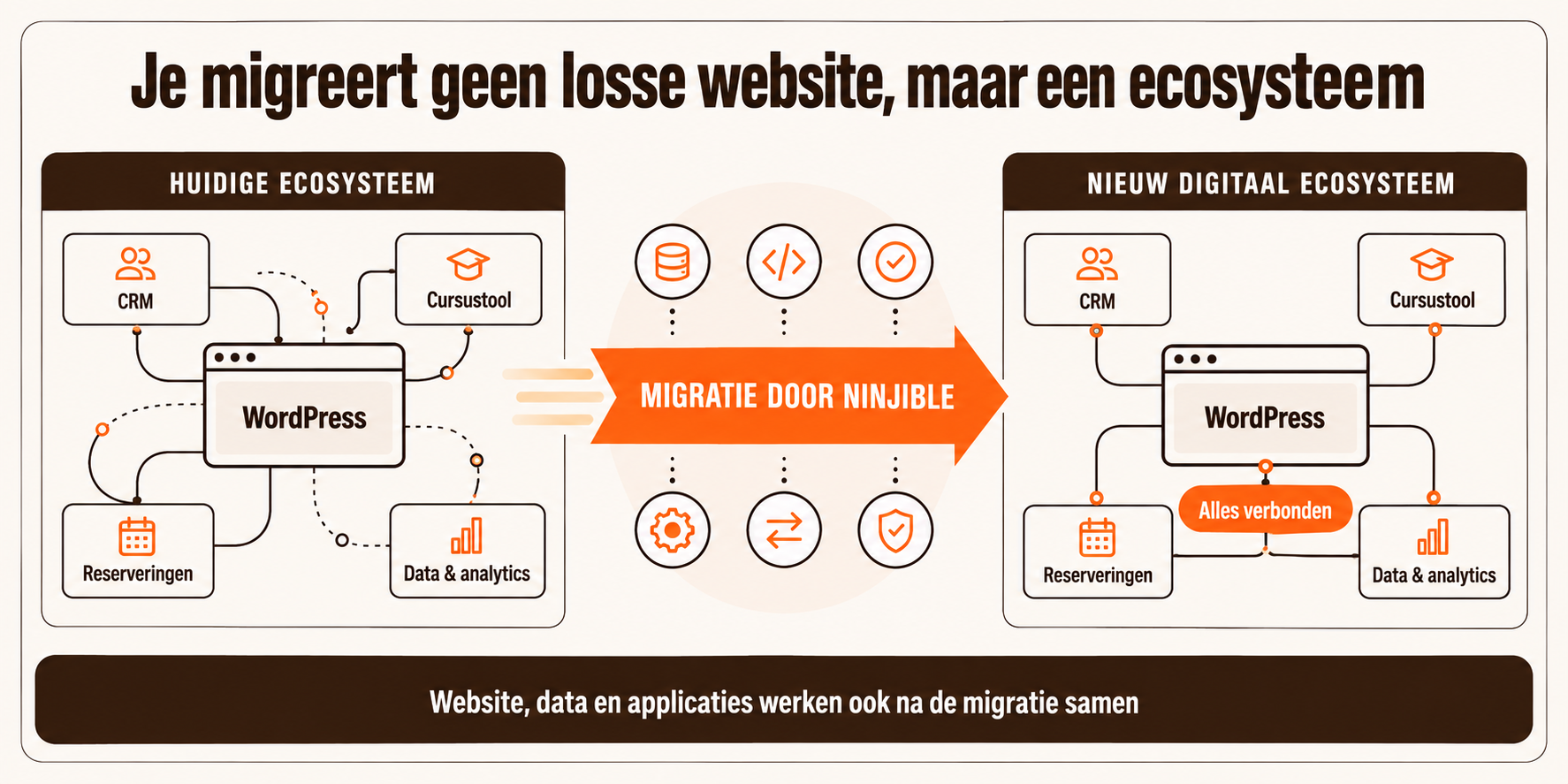
Many WordPress websites don't stand alone. They exchange data with, for example, a CRM, course tool, reservation system, member area, payment provider, email platform or custom application. In a migration these connections have to be set up again or adjusted. Think of API integrations, webhooks, forms, user accounts, authentication and automated data flows.
Ninjible first maps out which systems communicate with WordPress, which data is exchanged and which process depends on it. We then build or adjust the integrations and test the complete route. So not only whether a form is submitted, but also whether the right data ends up in the right system, automated actions are started and users keep access.
👉 Do you have course tools, reservation systems or other applications connected to WordPress and want to be sure they keep working during the migration? We can map out the complete technical route with you.
7. Check the technical SEO of the new website
Before the new website goes live, check at least:
- whether every indexable page has a self-referencing canonical;
- whether internal links point directly to the final URLs;
- whether page titles and descriptions have been carried over correctly;
- whether hreflang references are correct for multilingual content;
- whether the sitemap contains only final, indexable URLs;
- whether important pages are accessible to search engines;
- whether removed pages return a correct 404 or 410 status;
- whether there are no unintended duplicate versions of the website.
That last check is important. An acceptance, production or www variant that stays reachable without proper canonicalization and protection can cause duplicate indexing.
8. Plan the go-live and limit changes
Preferably plan the go-live at a quiet moment, but when the technical and content team is available to solve problems immediately. Going live in the middle of the night sounds safe, until it turns out the only person with access can't be reached until the next morning.
Make a runbook beforehand with tasks, responsible people, checks and a fallback scenario. Also record when content is temporarily frozen, so that no new changes are lost during the final migration round.
9. Test directly after going live
Immediately after publication, check:
- a representative selection of old and new URLs;
- all 301 and 308 redirects;
- HTTP status codes;
- canonicals and robots settings;
- the XML sitemap;
- forms, tracking and integrations;
- images, downloads and videos;
- mobile use and load time.
Then crawl the entire website again and compare the results with the baseline. That way you find missing pages, broken internal links and faulty redirects before visitors or search engines run into them en masse.
10. Monitor what happens after the migration
A migration doesn't end at going live. In the weeks afterwards, keep an eye on, among other things:
- indexing in Google Search Console;
- impressions, clicks and rankings;
- 404s and other crawl errors;
- organic traffic per landing page;
- conversions and form submissions;
- server logs and crawl behavior;
- performance and availability.
Submit the new sitemap to the search engines for which you use webmaster tools, such as Google Search Console and Bing Webmaster Tools. If the domain or subdomain also changes, use the change of address tool in Google Search Console where applicable. Google states that processing happens per URL and takes time. A short fluctuation is therefore not automatically an error; a sudden drop of a complete section does require immediate investigation.
What does a WordPress migration mean for AI search engines?
People no longer search only via a classic list of search results. They also put their questions to ChatGPT, Microsoft Copilot, Perplexity and search engines with built-in AI answers. These systems can use web pages to compose answers and refer to sources.
However, there is no separate 'AI value' that you can export and import during a migration. Nor can you guarantee that a specific page will be mentioned in an AI answer again after the move. What you can do is protect the signals that help your website to be found and understood as a useful source.
During a migration, therefore, also pay attention to:
- Keep source URLs reachable. Keep important URLs the same or permanently redirect them to the most relevant new page. This prevents an AI answer or external source from pointing to a page that has disappeared.
- Preserve content and context. Don't carry over only the main text, but also author information, publication and modification dates, cases, source references and clear information about the organization behind the content.
- Use a clear structure. Descriptive headings, concrete answers, internal links and appropriate structured data help different search and answer systems interpret the content.
- Check robots.txt and technical blocks. Prevent relevant crawlers from being unintentionally excluded after going live by old rules, a firewall or settings from the test environment.
- Check individual AI crawlers. OpenAI, for example, uses
OAI-SearchBotfor showing websites in ChatGPT Search. According to OpenAI's official documentation that setting is separate fromGPTBot, which relates to possible use for model training. You can therefore allow OAI-SearchBot and block GPTBot when that fits your policy better. - Keep checking where your brand is mentioned. After the migration, look not only at classic rankings and traffic, but also test important questions in AI search engines and check whether old or incorrect URLs appear as a source.
The basics overlap strongly with good SEO: accessible pages, consistent URLs, reliable content and clear technical signals. The difference is that after a migration you monitor more broadly than just Google rankings. You also look at whether the content is still findable and citable in AI-driven search experiences.
👉 Do you want to protect not only your SEO rankings during a migration, but also your broader visibility in search engines and AI answers? Ninjible can include the technical and content migration checks.
Common mistakes in a WordPress migration
Most problems don't arise because content is impossible to move, but because parts are left out of sight. This is what we often see going wrong:
- migrating only URLs from the sitemap;
- thinking up redirects only after going live;
- sending all old pages to the homepage;
- leaving internal links pointing to old URLs;
- making the test environment indexable;
noindexleft in place after going live;- canonicals pointing to the old or wrong environment;
- forgetting images, PDFs and other files;
- testing forms only visually;
- not reconfiguring tracking or consent;
- stopping checks right after going live.
One mistake doesn't have to be a disaster. A combination of faulty canonicals, missing redirects and an incomplete sitemap can, however, make it hard for Google to understand the new structure.
WordPress migrations in practice
Ninjible has helped several organizations replace or rebuild their WordPress website. This involves not only transferring pages, but also design, technology, content management and findability.
Migrating more than 200 articles for Plastic Soup Foundation
The existing WordPress website of Plastic Soup Foundation had become heavy due to the large number of plugins and required a lot of technical maintenance. At the same time, the accumulated content value was not allowed to disappear.
We designed a new website and migrated more than 200 articles from WordPress to Kooboo. In doing so we carefully carried over the existing content and SEO value and set up a centrally managed CMS. The website, the CMS and the new multilingual product scanner were developed as one digital ecosystem.
View the Plastic Soup Foundation case
Creative freedom and manageability for Woedend
For Woedend Creative Agency we migrated the existing WordPress website to Kooboo. The distinctive design had to be preserved on desktop and mobile, while the team had to be able to manage all content — including video — independently.
We configured a flexible CMS and built the website SEO-optimized. That way Woedend didn't have to choose between creative freedom and practical content management.
View the Woedend Creative Agency case
👉 Curious what a migration demands of your content, CMS and integrations? Present your current situation to us, no obligation.
When can you migrate yourself and when do you outsource it?
A small WordPress website that moves to a different hosting environment without changes can often be transferred with a good backup and a migration plugin. Even then, always check forms, SSL, internal links, caching and accessibility.
Professional guidance becomes more important when:
- you have many pages, languages or media files;
- the URL structure changes;
- you switch to a different domain or CMS;
- organic traffic is important for leads or revenue;
- the website contains custom work or external integrations;
- multiple websites are merged;
- downtime has major consequences;
- not all technical and SEO knowledge is available internally.
The question is then not only whether the files can be moved. The question is whether visitors, search engines, editors and connected systems still get what they need after the switch.
Getting your WordPress migration right?
A WordPress migration is a technical project, a content project and an SEO project all at once. Successfully transferring a website therefore takes more than one click on a plugin.
Ninjible first maps out what must be preserved, what the current website runs into and what the new environment must do better. Then we build, migrate and test the complete solution. From content and redirects to CMS, integrations and monitoring after going live.
Do you want to know what is needed to migrate your WordPress website safely? Contact Ninjible.
Frequently asked questions about WordPress migrations
How can I migrate my WordPress website?
First make a complete backup and inventory of the existing website. Build and test the new environment, migrate the database, files and content, and set up redirects when URLs change. Before and after going live, check, among other things, forms, internal links, canonicals, sitemap, tracking and indexability. For a complex website, a migration plan matters more than the tool used to copy files.
Do you lose SEO in a WordPress migration?
Not necessarily. Temporary fluctuations can occur because search engines have to crawl and process the website again. With a complete URL mapping, relevant permanent redirects, preservation of content and metadata, correct canonicals and good monitoring, you can transfer the built-up SEO signals as carefully as possible. These same measures also help prevent AI search engines from ending up at disappeared or outdated sources after the migration.
Can I migrate from WordPress to a different CMS?
Yes. Content, images, metadata and functionality can be transferred to a different CMS. Because content models and features differ per system, this is usually not an automatic one-to-one migration. Determine beforehand which WordPress plugins, fields, templates and integrations have to be replaced in the new environment.
Do I need redirects if my URLs stay the same?
No, not for URLs that stay exactly the same and show the same content. Do check, however, that they actually keep the same status code, canonical and content. If a URL changes, the old URL should permanently redirect to the most relevant new page.
How long does a WordPress migration take?
That depends on the number of pages, the complexity of the design, custom work, integrations, languages and whether you are only moving or also getting a new website and a different CMS. A small hosting move is something different from a complete rebuild with hundreds of articles. A reliable schedule therefore only follows after a technical and content inventory.